How to Customize Your Store Branding

Standing out is crucial for any business. With our new Branding Features, you can now personalize your store to match your identity.
Why Branding Matters?
A consistent brand look builds trust. Stores with logos and custom colors see up to 40% higher conversion rates.
Step 1: Access Store Settings
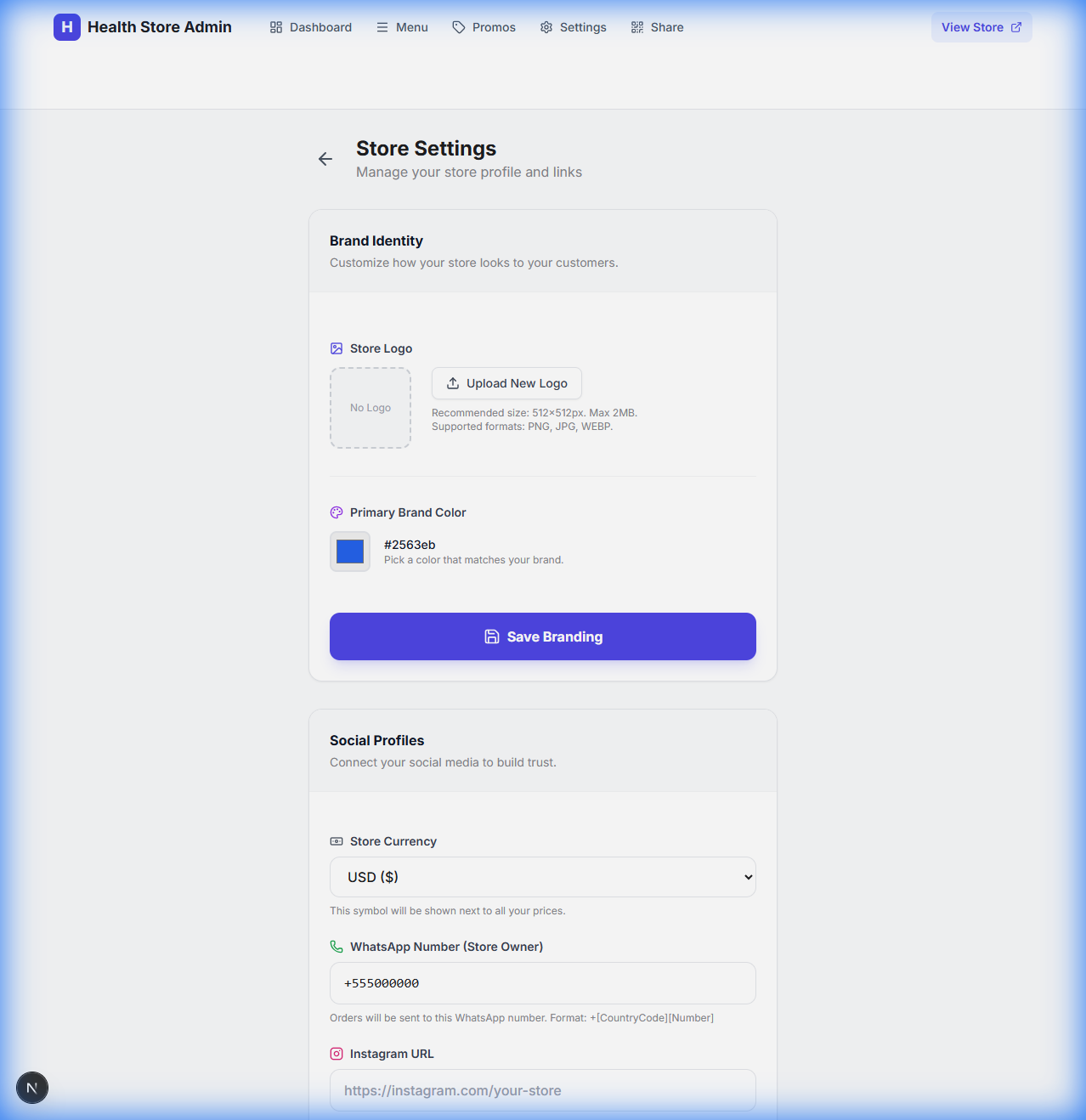
Log in to your Admin Dashboard and navigate to the Settings tab. You'll see a new section called "Brand Identity".
Step 2: Upload Your Logo
Click on the file upload area to select your business logo. For best results, use a square image (PNG or JPG) with a transparent background.
Step 3: Choose Your Brand Color
Your primary color will be used for buttons, badges, and accents across your store. You can:
- Pick from our curated palette using the color swatches.
- Enter a custom HEX code (e.g.,
#FF5733) to match your exact brand color.
Step 4: Save & Publish
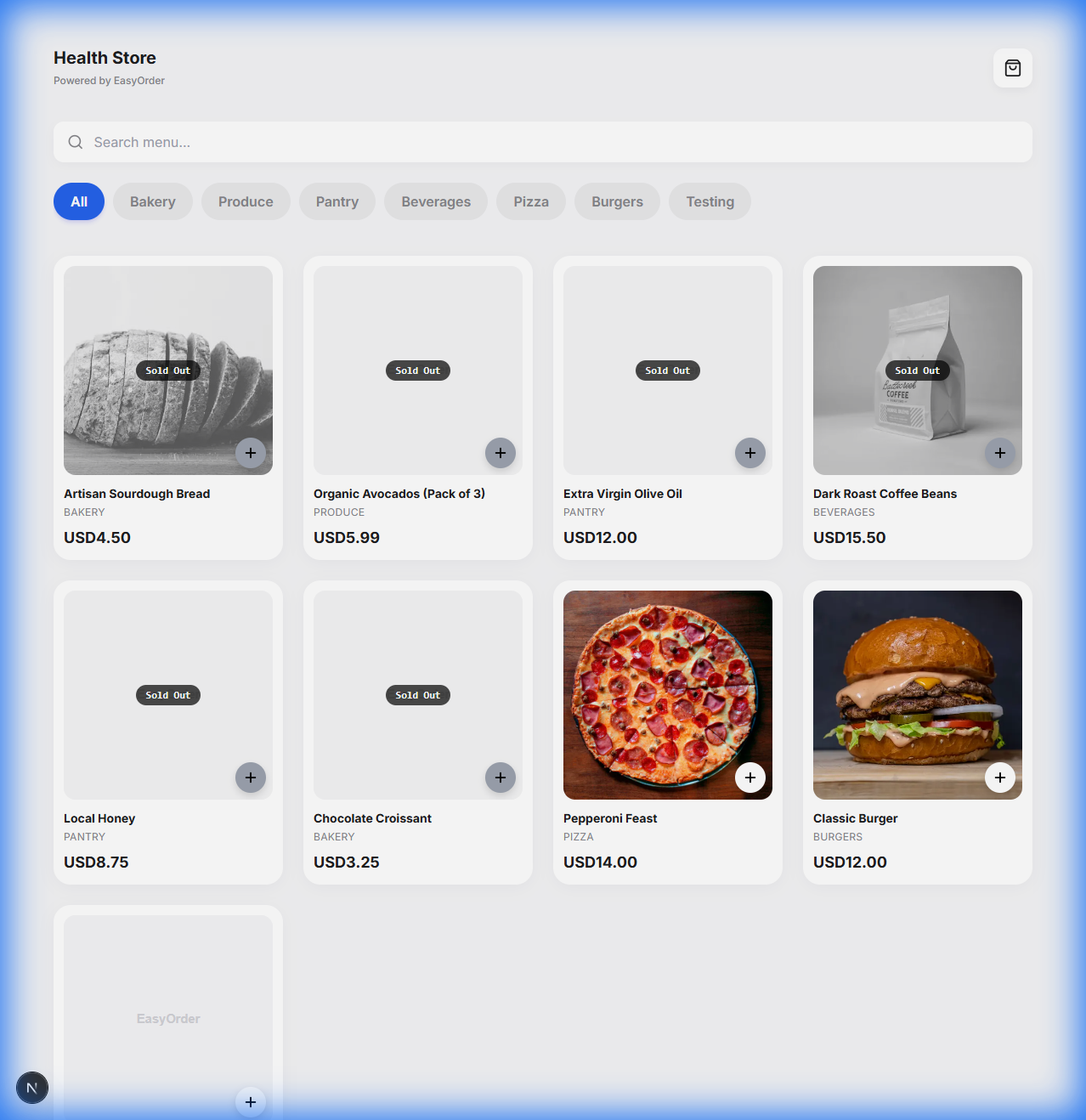
Click "Save Branding" and visit your storefront link. You'll see your logo in the header and your colors applied instantly!
Pro Tip
Test your new look on mobile! Most customers will order from their phones.